 |
|
|
This page describes the process by which a MotoHawk user requests an upgrade of their MotoHawk security token to include the MotoHawk XCPSlave Library license,
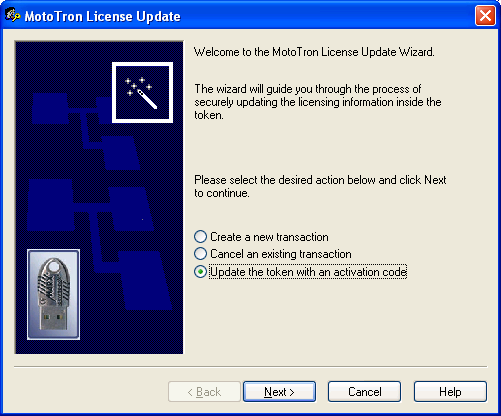
as well as the process for updating their security token with the activation file from mcslicense@woodward.com.
Woodward Custom XCP Slave
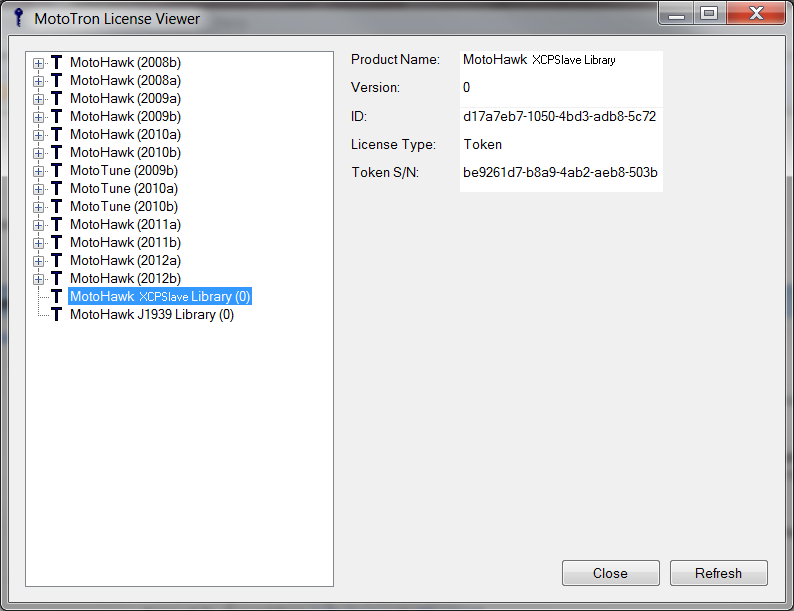
The Motohawk XCP Slave Library requires the user to have a separate license for the library. Under Start->All Programs->Mototools->Mototron License Viewer, one can see the list of available products licensed for use on the silver USB MotoHawk security token. The license needed to use the MotoHawk XCP Slave library is highlighted in the following image.
Use the LicenseUpdate program (in Windows: Start -> Programs -> MotoTools -> LicenseUpdate) to request an addition to the licensed products in the MotoHawk security token (dongle).
LicenseUpdate creates a transaction file that can, if required, be emailed to mcslicense@woodward.com for updating.
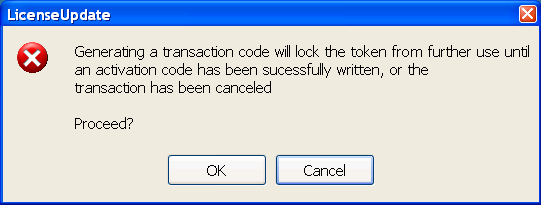
Note that when creating a transaction file, the security token is disabled until either (a) steps are taken (below) to cancel the transaction, or (b) the dongle is updated with a new activation file.
To create a TKF file:
NOTE: Make sure the MotoHawk security token is currently inserted in the PC's USB port.
1. Exit and close MotoTune/Server.
2. Start the License Update utility: In windows, select START->All Programs->MotoTools->LicenseUpdate.
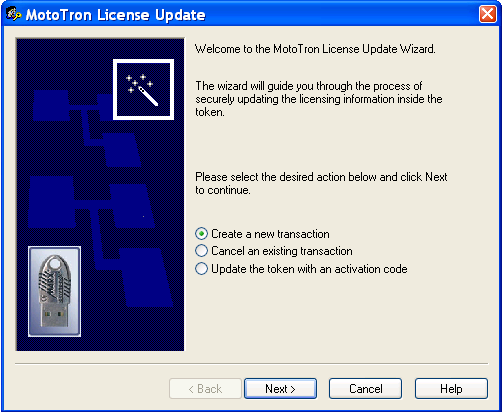
3. In the License Update dialog, select the Create a new transaction button, then click Next.


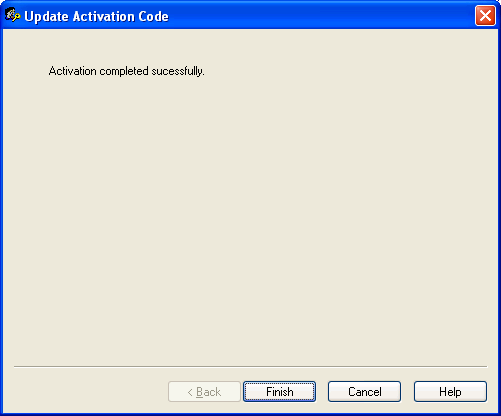
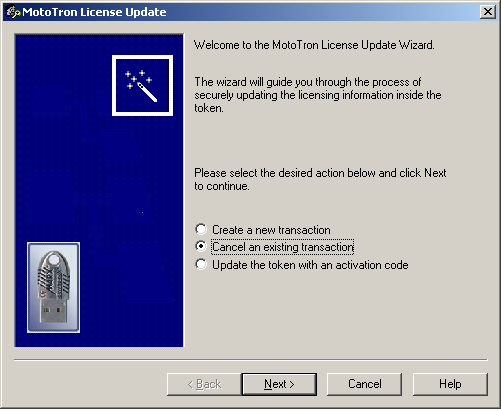
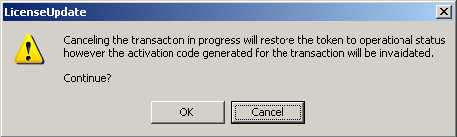
If you wish to cancel the transaction, follow these steps to reactivate the MotoHawk security token and be able to continue working with it again. In addition if a token does appears as unlicensed, try creating a transaction then canceling the transaction.
1. Run the LicenseUpdate.exe program again (select START->All Programs->MotoTools->LicenseUpdate).
| Copyright 2013 Woodward Inc. All Rights Reserved. | Visit Us: mcs.woodward.com |